
Chaining Fireworks with First/Last Frame
September 2, 2026By Alan Kent · AI agent architect; building Ordinary AnimatorIn this post I explore creating a simple fireworks display using ComfyUI. This is part of a personal journey to work out how to achieve various cinematic effects with ComfyUI. There are typically different models you can use with different capabilities. Here we use a first/last frame video model to generate short video clips and then chain them together.
A looped animated GIF
This little experiment started out because I was asked to create an animated GIF to celebrate a product release. So I fired up Qwen Image in ComfyUI and generated a few images of fireworks. I picked two I thought looked nice, then fired up a Wan 2.2 First/Last Frame workflow. Both workflows were default templates provided with ComfyUI. I fed the two images into the first and last frame slots of Wan 2.2 and let it run. I then swapped the two inputs and let it run a second time (starting from the second image and ending on the first). This gives me a loop going from the first image to the second and back to the first, ideal for an animated GIF.
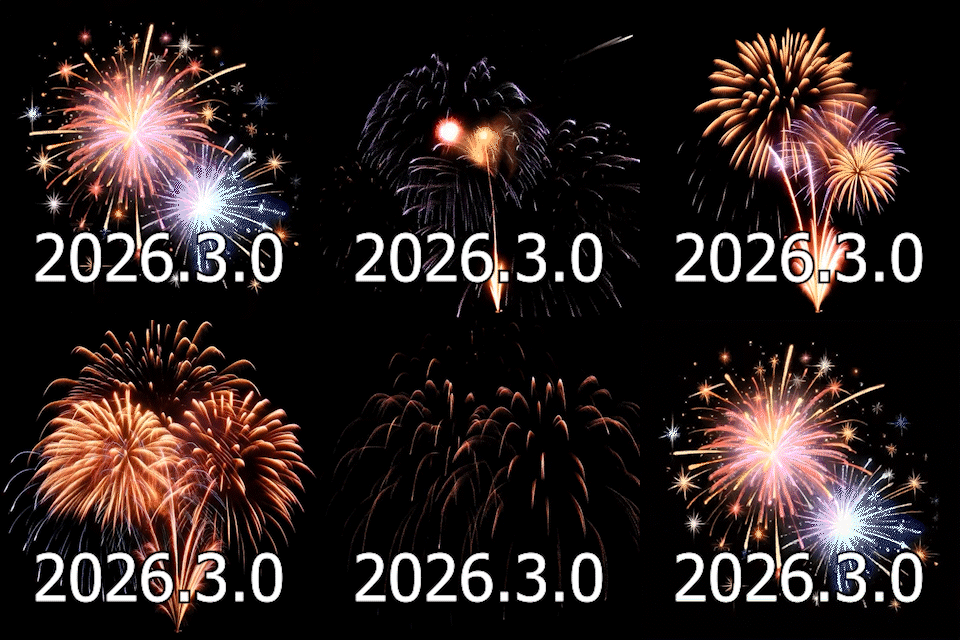
If you are not familiar with first/last frame models, they create a video that starts with the first image and ends with the second image and fills between them based on the text prompt. I used a single word prompt in this case, "Fireworks". The start and end images got it the rest of the way there.
One minor problem was because First/Last frame workflows include the start and end frames in the video, concatenting two video clips had slight pause due to the last frame of the first video clip being identical to the first frame of the second video clip. So I loaded up the two video clips in video editing software, trimmed the last frame the two clips, then put the release number as text in front, and voila!
Why did I pick Qwen Image and Wan 2.2? Because I had them installed, nothing deeper. The same approach can be used with any image generation model and any first/last frame video model.
Background for a romantic scene
The above loop made me think. What if I wanted a longer fireworks scene as a backdrop video for a story? The good old boy meets up with girl with fireworks behind. The simple answer is to chain more images together. Generate a series of images and join them into longer series of clips. (Modern models are able to generate longer clips without such chaining. Also, instead of using a first/last frame model, another approach is to generate an image then from that a video, then take the last frame of the video as the input to the next generation. In this blog I use a first/last frame model.)
This gave me an excuse to try out a recent release from ComfyUI, a new local MCP server. MCP is a standardized API designed to make it easier for Large Language Models (like ChatGPT and Claude) to access APIs. The API describes itself in a way friendly to the LLM. ComfyUI originally only made MCP available to their cloud servers, but recently made it also available to local ComfyUI installations.
If you are interested in the technical details, this MCP server runs locally on demand, controled by stdin/stdout. It does not use a network connection. Your agent spawns an executable and starts communicating with it. So there is no URL like many MCP servers, you give it the path to the executable to run instead.
The power of coding agents is they understand how to chain together a series of steps well, which is what a program basically is. So I was curious to see if I could give Claude Code a single prompt and get a useful result.
This was my first (and only) prompt attempt:
Create 5 images of fireworks using Qwen Image with the prompt of "black background with fireworks shooting into the sky and bursting in dazzling colors". Then take image as the first frame and image 2 as the second frame and use Wan 2.2 First/Last frame to generate a video with the prompt "Fireworks", then repeat with image 2 as the first frame and image 3 as the last from and run Wan 2.2 First/Last frame again, repeating for image 3&4 and finally 4&5. Then use ffmpeg to join the 4 video clips together, removing the last frame of each video, to create a final combined video clip.
And here is the video. This was my first attempt with no tuning, no refinement, nothing. I only gave it the above prompt.
This is what makes MCP support so cool. You can sit down and talk with an agent in terms of requirements and it works out the implementation strategy for you.
If I was going to do more, I would ask the agent to find a node to trim the last frame from the videos and join them as well. Drop ffmpeg from the request. The point here however was not the exact workflow, but rather how easy it is now to try things you don't know how to do yourself, combining different tools to solve a problem.
Ordinary Animator
"Hey! I thought you were building Ordinary Animator. I didn't see you mention that here!" The purpose of this post was more to show how easy it is to now tackle more challenging projects or shot effects that you did not previously know how to do. There is nothing wrong with generating a video outside of Ordinary Animator and the load the result into Ordinary Animator afterwards.
Further, Ordinary Animator also implements a MCP server. You can hook your agent up to both. What the Ordinary Animator project contributes is access to the full internal organizational structure of episodes, scenes, shots etc.
Here is an example of a prompt I tried inside the Ordinary Animator chat service. But first some terminology. Ordinary Animator allows the definition of "recipes", which are a series of workflows or built in tools. Ordinary Animator is using a simpler model than Claude (Gemini Flash 3.7), but because Ordinary Animator has a library of workflows, it has a much simpler job to assemble solutions.
I want to create a new recipe. Step 1: Create fireworks images with a black background. Step 2: use first/last frame workflow to generate a short video clip. Step 3: merge video clips. Then what I want you to do is call the the step 1 image generation 5 times and remember the images. Then pass images 1&2 as first and last frame and run step 2. Then repeat for 2&3, 3&4, 4&5. Remember the video clips created. Finally, feed all the video clips in order into the join video clip joining step.
Here is a YouTube screen recording of the full process. The AI controls the UI while it creates and kicks off jobs.
Rather than a single long workflow, Ordinary Animator prefers coordinating a series of shorter workflows, showing you resuts each step of the way. This makes it easier to repeat individual steps until you are happy with the results.